
Keywords are the search terms FlowSEO checks every week to see what position your website has. Add them one by one, import them in bulk and organise them with tags so you can filter later. New keywords are included from the next weekly measurement.
The keyword list
In the sidebar, open Keywords and then Keyword list. You see all keywords of the active domain with tags, Target URL, the Configurations they're measured in, the Search volume and the current position per configuration.
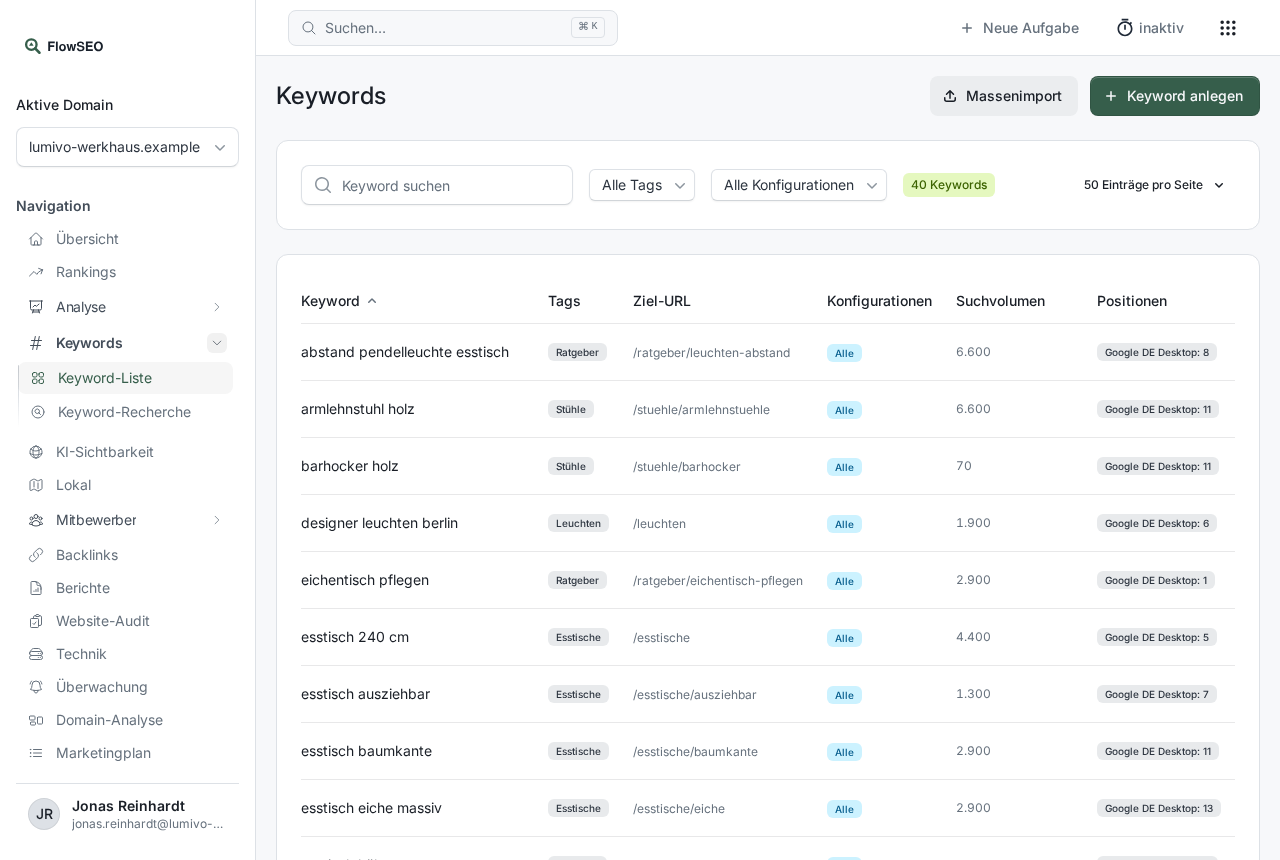
Use Search keyword, All tags and All configurations to narrow down the list. Clicking Keyword or Search volume in the table header sorts by that column.
Add a keyword
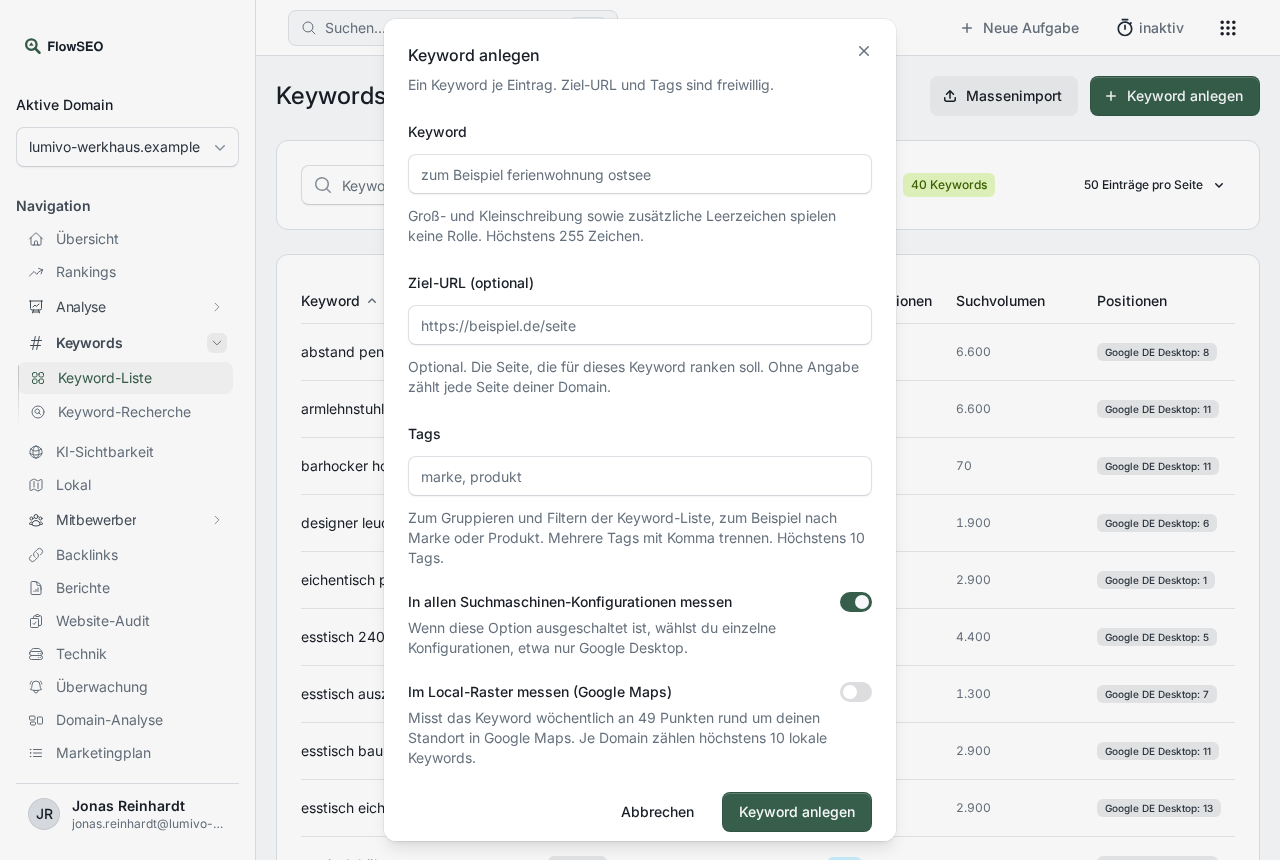
- Click Add keyword at the top right.
- Under Keyword, enter the search term, for example
solid oak dining table. Capitalisation and extra spaces don't matter. - Optional: under Target URL (optional), enter the page that should rank for this keyword. Without one, any page of your domain counts.
- Optional: assign Tags, separated by commas, for example
dining tables, guides. - Leave Measure in all search engine configurations turned on. If you turn it off, you choose individual configurations, such as only Google Desktop.
- Click Add keyword.
Import many keywords at once
- Click Bulk import.
- Type or paste one line per keyword into the field. After the keyword you can add a target URL and tags, separated by a semicolon, and tags among themselves with a comma:
keyword;target-url;tag1,tag2. - Click Show preview. FlowSEO shows which lines are New, Already present, Duplicate in the input or Invalid, for example because of a faulty target URL.
- If everything looks right, click Create keywords. All other lines are skipped.
A single import can have at most 500 lines. Split longer lists.
Edit and delete
With the pencil in the Actions column you change the target URL, tags, the assignment to configurations and the Active status. The keyword text itself is fixed after you create it. If you want to change it, add a new keyword and delete the old one.
An inactive keyword is no longer measured, and the existing values are kept. The same applies when you delete with the red trash icon: the keyword is no longer checked, the measurements stay saved.
Good to know
- Tags are worth it: You filter by tags on the Rankings page, for competitors and in the keyword list. Each keyword can have up to 10 tags.
- Find new keywords: Keyword research shows you which terms are worthwhile. From there you add them straight to tracking.
- “This keyword already exists for this domain.”: The keyword is already added, possibly with a different spelling. Look for it in the list.
- “No volume known”: The search volume is loaded later. For very rarely searched terms, the field can stay empty.