
With Keyword research you find new search terms and questions around your offering, rate them by search volume, difficulty and opportunity and add the best ones straight to rank tracking. FlowSEO also groups the results into topic clusters, so you see at a glance which keywords belong on the same page.
Start a research run
- In the sidebar, open Keywords and then Keyword research.
- Click New research at the top right.
- Choose the Research type:
- Matching terms: search queries that contain your seed keywords.
- Keyword ideas: thematically related keywords, even without your seed keywords in the wording.
- Related searches: follows Google's similar searches in depth.
- Questions: questions around your seed keywords, good for guides and FAQs.
- Competitor gap: keywords competitors rank for and your domain doesn't.
- Keywords for own domain: keywords that match the content of your website.
- Striking distance (Search Console): queries where Search Console shows you at positions 8 to 20. This type is only available with a connected Search Console.
- Under Seed keywords, enter one term per line, for example
solid wood sideboard. - Check country and language under Markets. Add more markets with Add.
- Click Start research at the bottom.
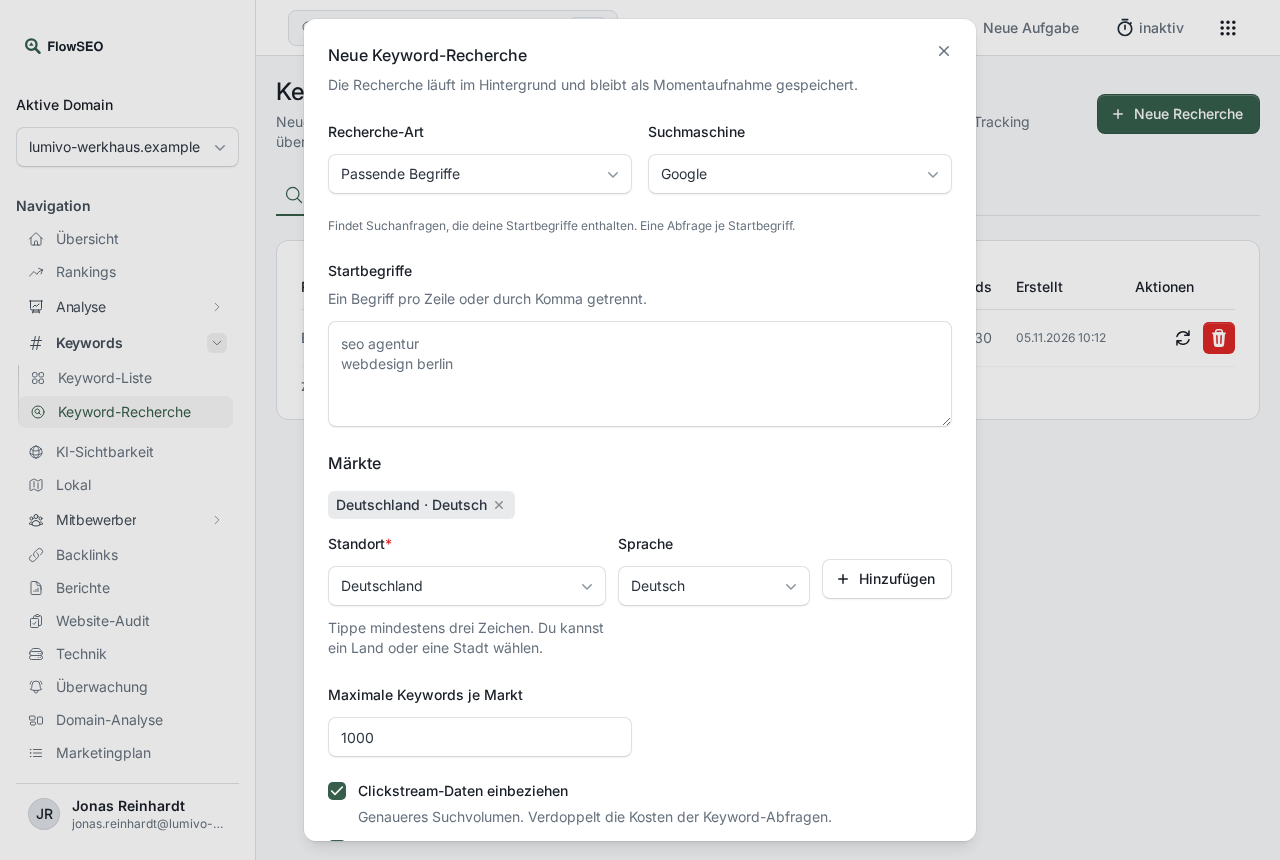
The research runs in the background. In the list it first shows Queued, Running or Clustering, then Completed, Partial if some of the requests didn't work, or No results. The page refreshes by itself.
Evaluate the results
Click the name of the research in the list. At the top you see the metrics Keywords, Total search volume, Avg. KD (average Keyword Difficulty), Questions and Already ranking.
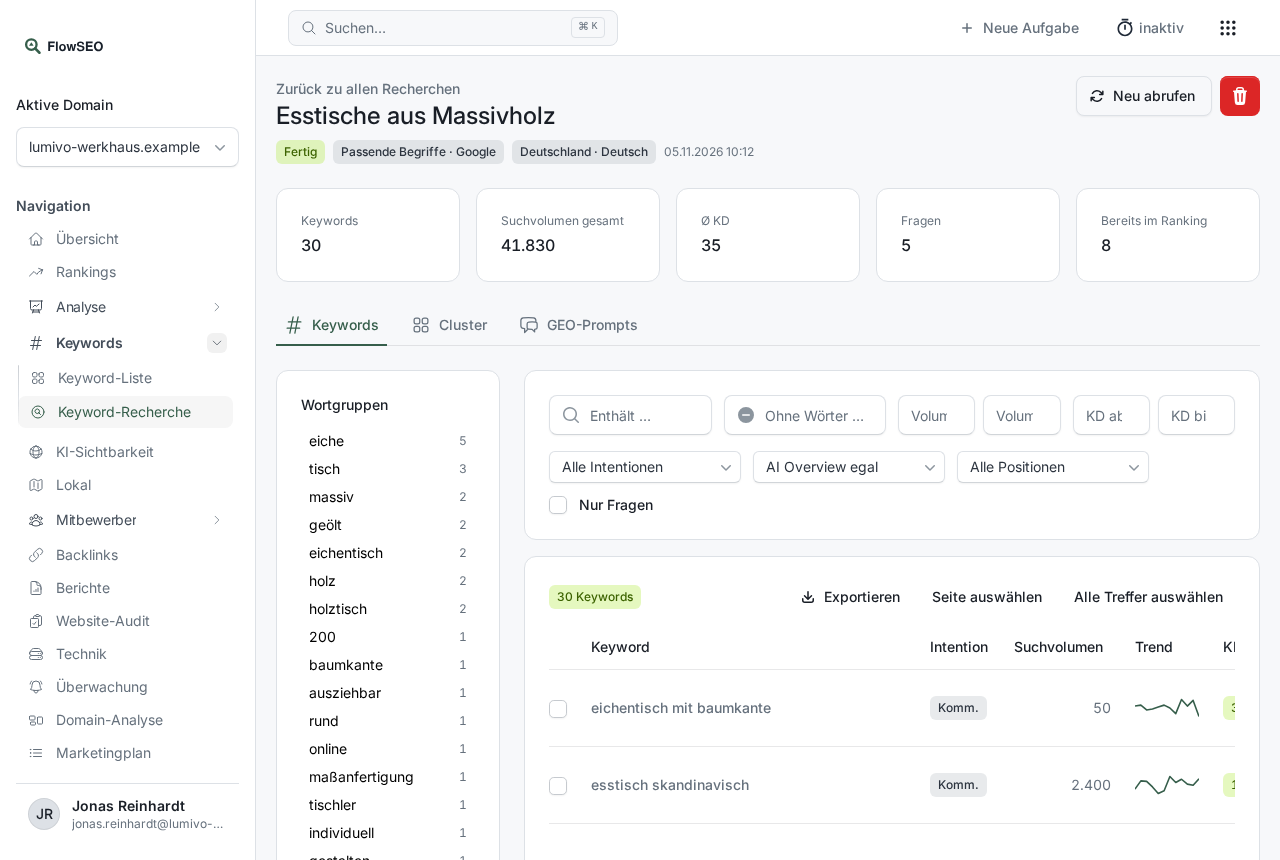
In the Keywords tab, narrow down the list with, for example, Volume from, KD up to or Questions only. Under All positions, choose Domain does not rank to see only keywords you aren't found for yet. On the left under Word groups, filter by frequent words with one click. Clicking a keyword opens details with the search volume of recent months and the current positions.
Topic clusters and briefs
In the Clusters tab, the keywords are grouped by topic, with count, search volume, difficulty and Business value.
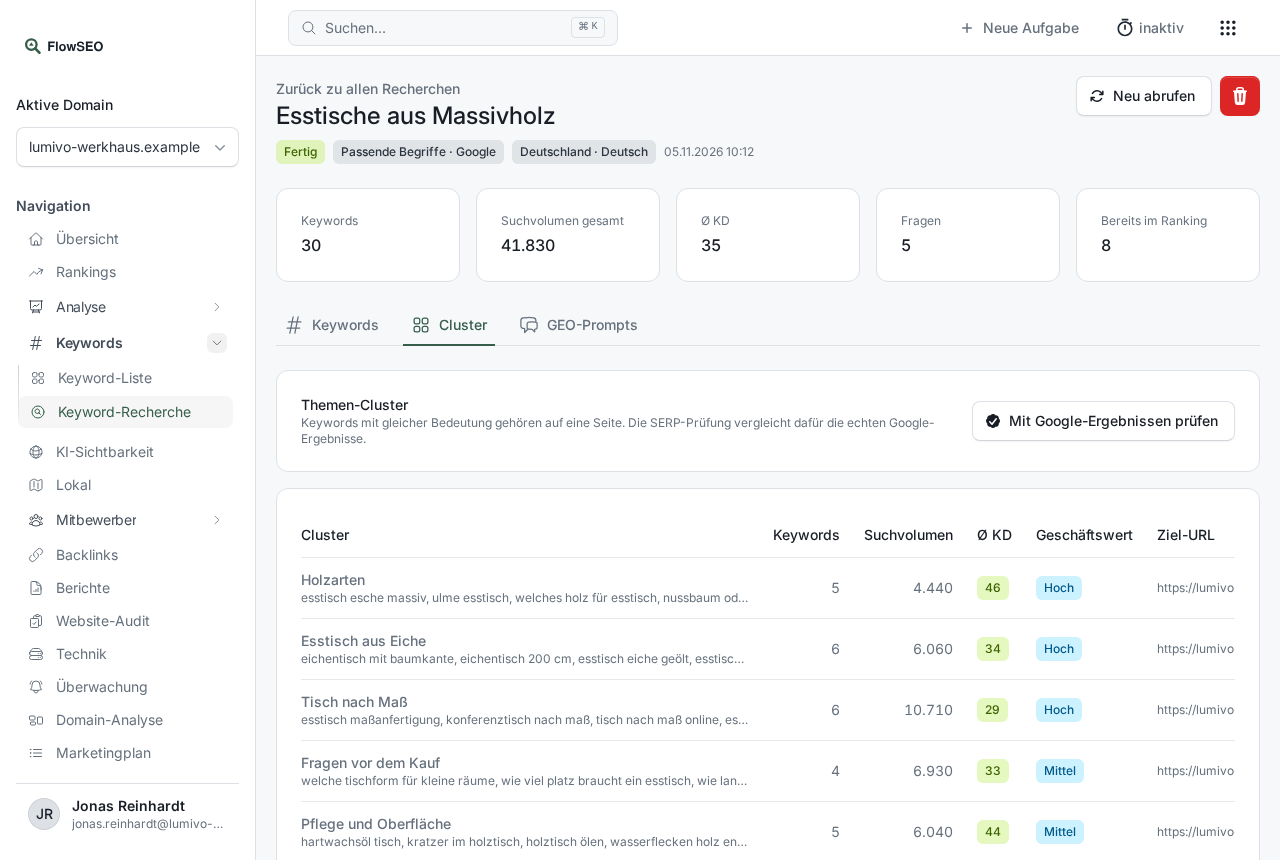
- With Edit cluster you set the Business value (Low, Medium, High) and the Target URL. The business value feeds into the opportunity score.
- Check against Google results compares the real Google results and merges keywords that show the same pages.
- Create brief writes a template for a text for one cluster: main keyword, search intent, recommended length, outline and questions for an FAQ section.
Add keywords to tracking
- Tick the rows you want in the Keywords tab, or use Select page or Select all results.
- Click Add to tracking, assign Tags if needed and confirm with Add.
Keywords you already track are skipped. Positions appear under Rankings after the next measurement. If you'd like to collect first, use Add to list to put the selection on a keyword list. You'll find all lists on the research page in the Lists tab.
In the GEO prompts tab, you generate questions from the clusters the way people ask ChatGPT or Perplexity and add them to AI visibility with Add to GEO tracking.
If something doesn't work
- Hourly limit: Research runs, Fetch again, briefs, the check against Google results and generating prompts all count as expensive tasks for your domain. Only a limited number per hour is possible per domain, shared with calls over MCP. When the limit is reached, FlowSEO shows the minutes until the next task is possible. More in Hourly limit.
- No results: Try other seed keywords or a different research type.
- Delete research: Keywords you've added stay when you delete a research run, and so do your keyword lists.