
Short answers to the questions that come up most often after setup. The basics are in Setting up the SEO calendar and connecting WordPress and Reviewing and approving posts in the SEO calendar.
Does every post go out at the same time?
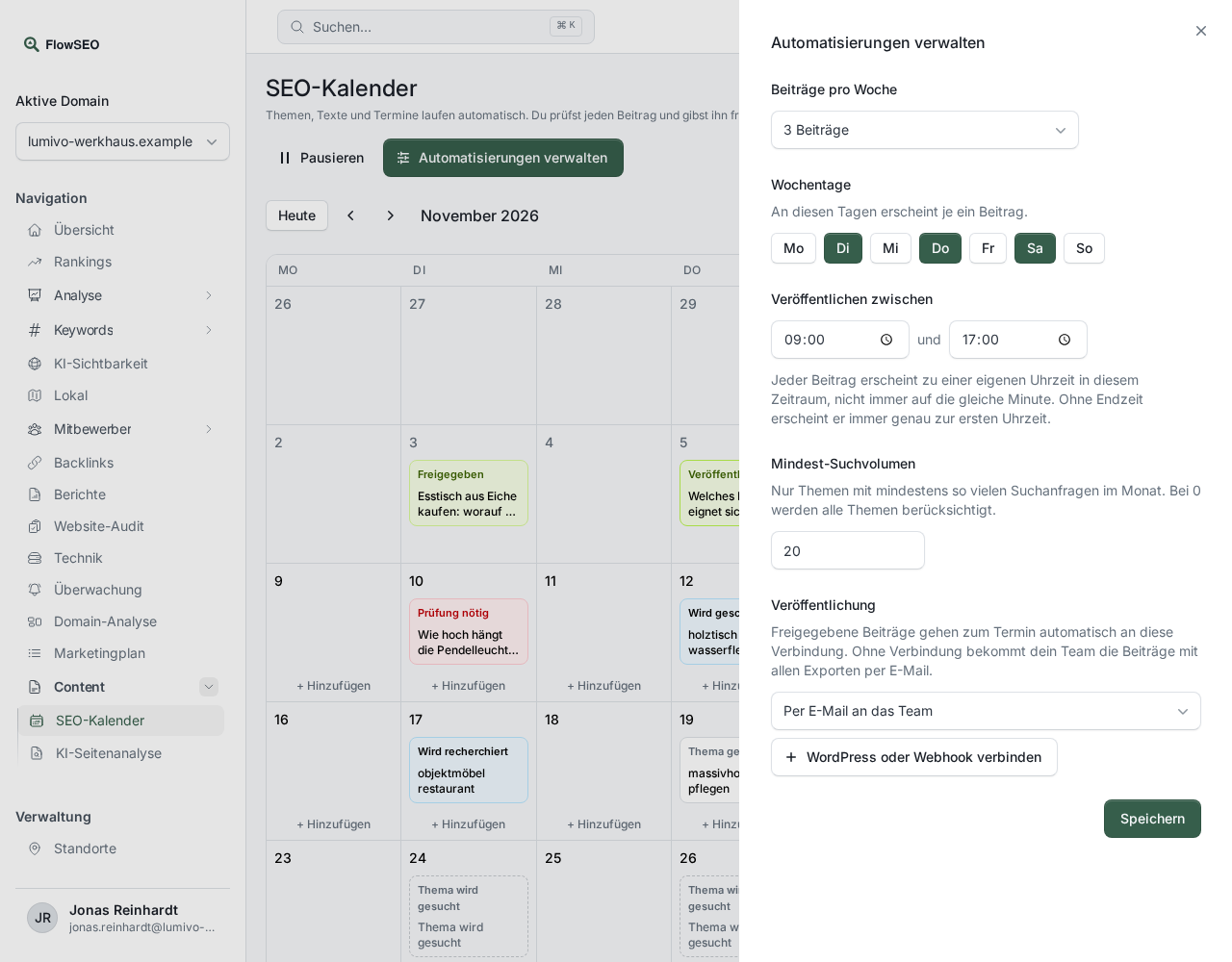
Only if you set it that way. Under Manage automations, use From and Until at Publish between to set a time window, for example 09:00 and 11:00. Each post then goes out at its own time within that window. If you leave the end time empty, it goes out exactly at the start time.
The end time must be later than the start time on the same day, otherwise FlowSEO reports “The end time must be after the start time on the same day.”
How many posts per week are possible?
Between 1 and 7. Under Weekdays, select exactly as many days as you set under Posts per week, otherwise FlowSEO reports, for example, “Please choose exactly 2 weekdays.”
If you change weekdays or the time, future dates without a finished text are rescheduled. Posts already in progress stay as they are.
How far ahead are posts written?
30 days. Publishing happens only after approval, either in the browser or through a connected AI agent, see The “Let AI agents release on their own” switch.
Who gets the posts by email?
With the By email to the team option under Publishing, you don't need to connect anything. Every approved post goes out on its date to all members of your team with access to FlowSEO. Who belongs to that group is determined at the moment of sending, so new colleagues automatically get the next email.
The subject is “New post for” followed by the domain and title. The attachments contain the post as HTML, Markdown, Word and PDF, along with the images and the structured data.
Why are the images missing from the email?
If the attachments are too large, FlowSEO leaves out the images. The email then says “The images were too large for this email. You can find them in the post on the platform.” Go to calendar takes you to the post.
What language does the AI write in?
In the Brand language from your Brand DNA. The market for topics and search volume is the location of your first Google measurement. If none is set up, the country from the Brand DNA is used.
What does “No market (country) is set for the domain.” mean?
Without a country, the calendar can't find topics with search volume. Choose a country in the Brand DNA, and it starts running again.
What happens when I pause?
With Pause, the calendar stops. Posts currently being written are still finished, but no new topics are planned. With Resume, it continues.
“Different topic” or “Remove date”?
- Different topic discards the topic, and the date automatically gets a new one.
- Remove date takes the post out of the calendar, and the day stays empty.
Neither topic is suggested again.
Can I take back an approval?
There's no button for that, and only our team can cancel a date. If an approved post is still revised, though, in the browser or by your agent, the approval is lifted: the date stays, and the post is only published after a new approval. If publishing fails because the address is already taken, an image is too large or an image is missing from the media library, the post goes back to review by itself: you change it and approve it again.
Can I schedule my own topics?
Yes. On today's date or a future date, click Add, enter your topic under Search term and click Schedule. The AI writes the post and sends it to you for approval.
What do the other error messages mean?
- “The topic is not a valid search term.” The term can't be used as a search query. Choose a different topic or schedule a new search term.
- “Writing the text failed.” Click Try again in the review panel.
- “Publishing failed:” followed by the reason. What to do next is explained in WordPress publishing doesn't work.
- “This connection no longer exists.” The selected connection was deleted. Choose a different one under Publishing, or By email to the team.