
Not every good keyword belongs in rank tracking right away. Lists let you collect ideas, exports let you pass them on, and a brief gives you the writing template for a page.
Putting keywords on a list
- Under Keywords, open Keyword research and then a finished research.
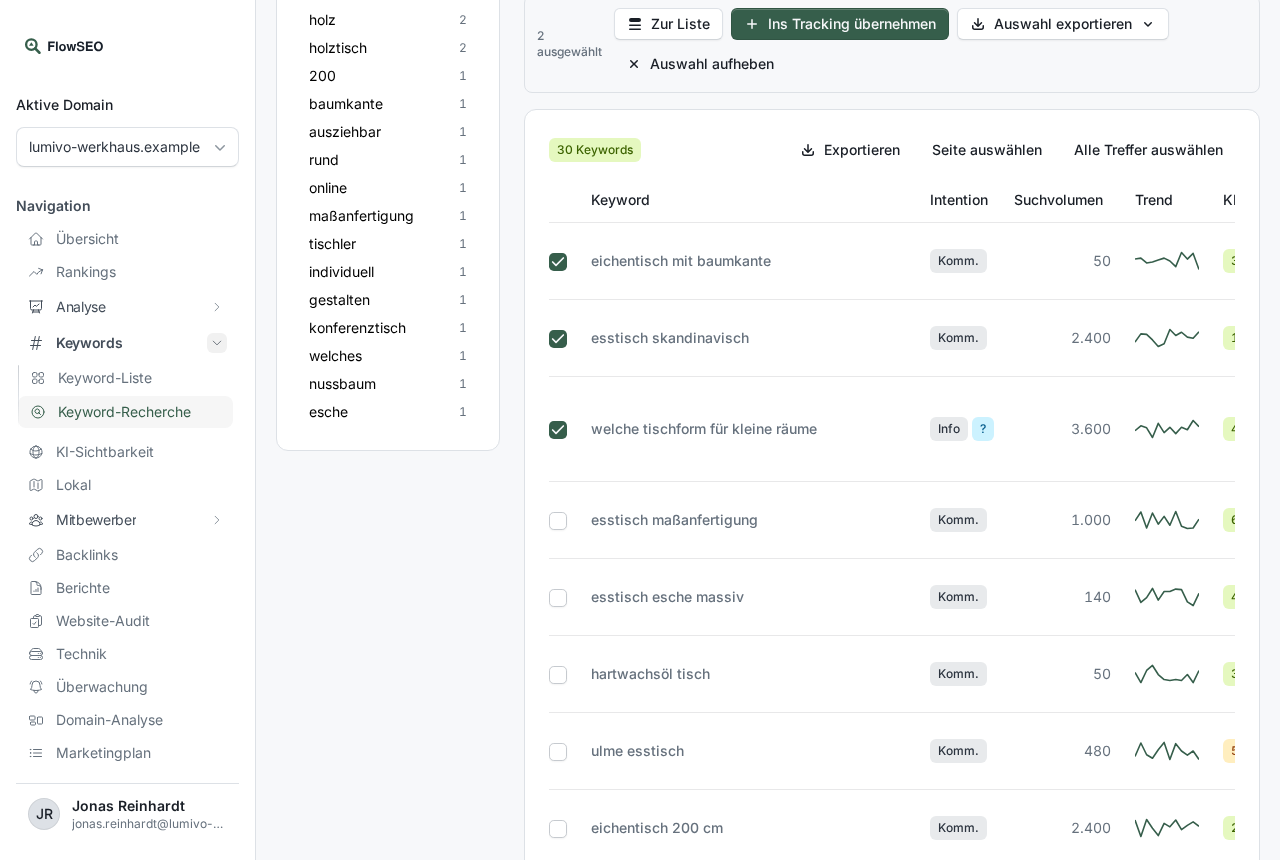
- In the Keywords tab, select the rows you want. Select page and Select all results select many at once.
- Click Add to list.
- Under List, choose an existing list or Create a new list. A new list gets a name and, optionally, a Description.
- Click Add.
Managing lists
You'll find all lists on the Keyword research page in the Lists tab. There you can:
- rename a list with Edit list,
- set the Business value per entry or delete it with Remove from list,
- send the list to rank tracking with Add to tracking. Keywords already being tracked are skipped,
- remove the list with Delete list.
Lists belong to your domain, not to a research. If you delete a research, your lists and the keywords you've added stay.
Exporting as CSV or Excel
- Export: all keywords that match your current filters.
- Export selection: only the selected rows.
- Export list: all entries of a list.
You can choose CSV or Excel (XLSX). The file contains the metrics from the table. What they mean is in Keyword research metrics explained.
Brief for a cluster
A brief is the writing template for a page on a topic cluster.
- In the research, open the Clusters tab.
- Click the brief icon (Create brief) next to the cluster you want. This takes a moment.
- After that, open it with the same icon, now View brief.
It contains the Primary keyword, Search intent, Recommended length (words), a Meta description, an Outline, Must cover, Questions for the FAQ, the Cluster keywords and the pages currently ranking. Download it with Markdown, and Create again rewrites it.
If something goes wrong
- Hourly limit reached: Briefs and research are limited per domain and hour. The message tells you the minutes until the next possible task. Exports and lists don't count, see Hourly limit.
- “The brief for this cluster is being created right now.” Wait a moment and open it again.
- Excel shows numbers as text: This is intentional, so Excel doesn't reformat any values. You can convert the columns to numbers in Excel.