
The Website audit checks your website the way a search engine does: it fetches your pages and reports technical problems, such as missing page titles, broken pages, slow load times or redirects. This shows you what to have fixed.
Start an audit
- In the sidebar, open Website audit.
- Click Start audit at the top right.
- The progress appears directly on the page. You don't need to keep it open for that.
One audit per day is possible per domain. Below the button you see whether one already ran today. While an audit is running, the button is locked until it's finished.
The overview
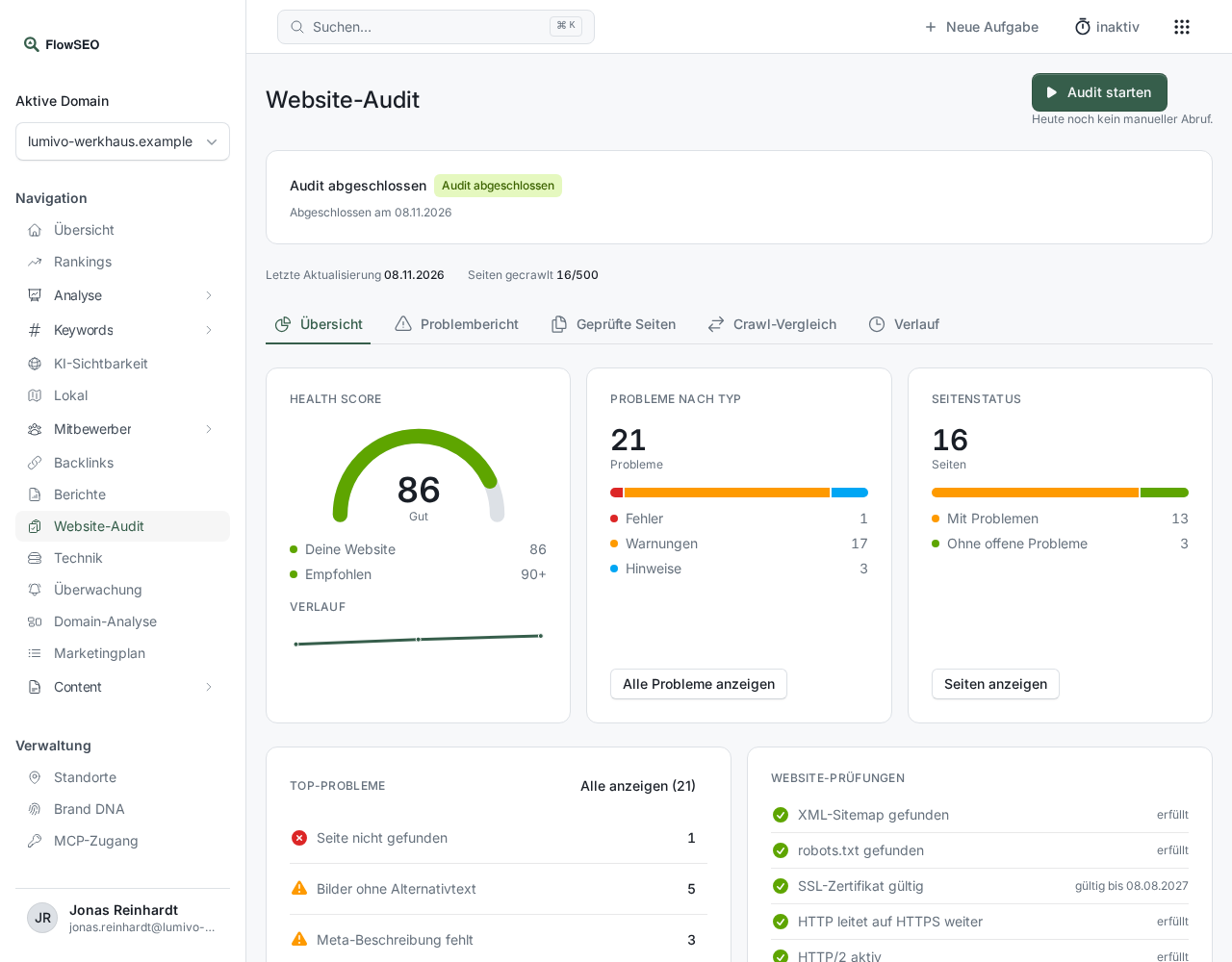
- Health score: an overall rating of your website's technical condition from 0 to 100, with 90 or higher recommended. Below it you see the History across previous audits.
- Problems by type: how many Errors, Warnings and Notices were found. Tackle errors first.
- Page status: how many of the checked pages have problems.
- Top problems: the most frequent findings with the number of affected pages.
- Website checks: basics such as the XML sitemap, robots.txt, a valid SSL certificate and the redirect from HTTP to HTTPS.
Further down, charts show the Distribution by category, the HTTP status codes, the Page depth (clicks from the home page to the page) and the Page load time.
The problem report
Click Show all problems or the Problem report tab. The findings are sorted into categories such as Crawling & indexing, Redirects, Meta tags or Load time & performance. At the top, you show or hide Errors, Warnings and Notices.
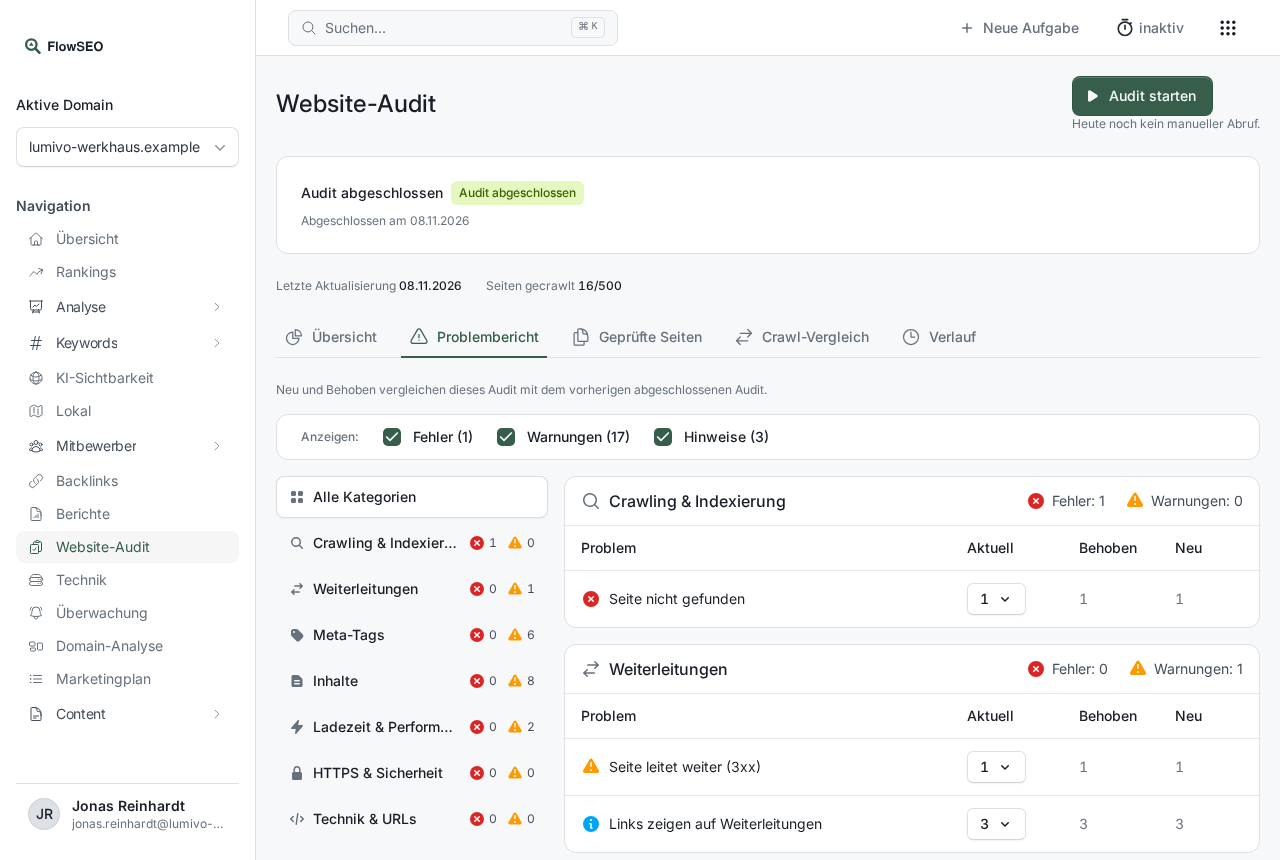
For each problem you see how many pages are Currently affected, how many have been Fixed since the last audit and how many are New. Clicking the number under Current shows the affected pages.
Mark findings as done
Once you've had a problem fixed, for example by adding a missing page title, mark the finding with Done in the list of affected pages. It then no longer counts among the open problems. In the next audit, FlowSEO checks the page again. If the problem is really gone, it shows up under Fixed.
The other tabs
- Crawled pages lists all fetched pages with status code, title, meta description, word count, links and load time.
- Crawl comparison puts two completed audits side by side. This shows you whether your website's condition has improved after changes.
- History shows how individual checks have developed across the last audits.
If something doesn't work
- “The audit has already been started today, the next one is possible tomorrow.” One start per day is possible.
- “The audit finished but could not fetch a single page.” Check whether your website is reachable and whether a firewall or security plugin is locking out crawlers.
- The page limit was reached: The website is checked up to the number of pages set for your domain. All pages crawled up to that point have been analysed in full.
- What to do with the findings? Many points are handled by your web agency or a CMS plugin. In the Technical SEO step, the Marketing plan guides you through the most important tasks.
More answers are in Website audit FAQ.