
Under Reports you'll find your SEO reports as PDFs: a clear summary with charts that you can forward, for example to your management. Reports our team creates for you end up here too. You can create a report for any period yourself at any time. What a report contains is explained in What's in the SEO report?.
Download reports
In the sidebar, open Reports. Each row shows the period, the headline of the summary and a short excerpt.
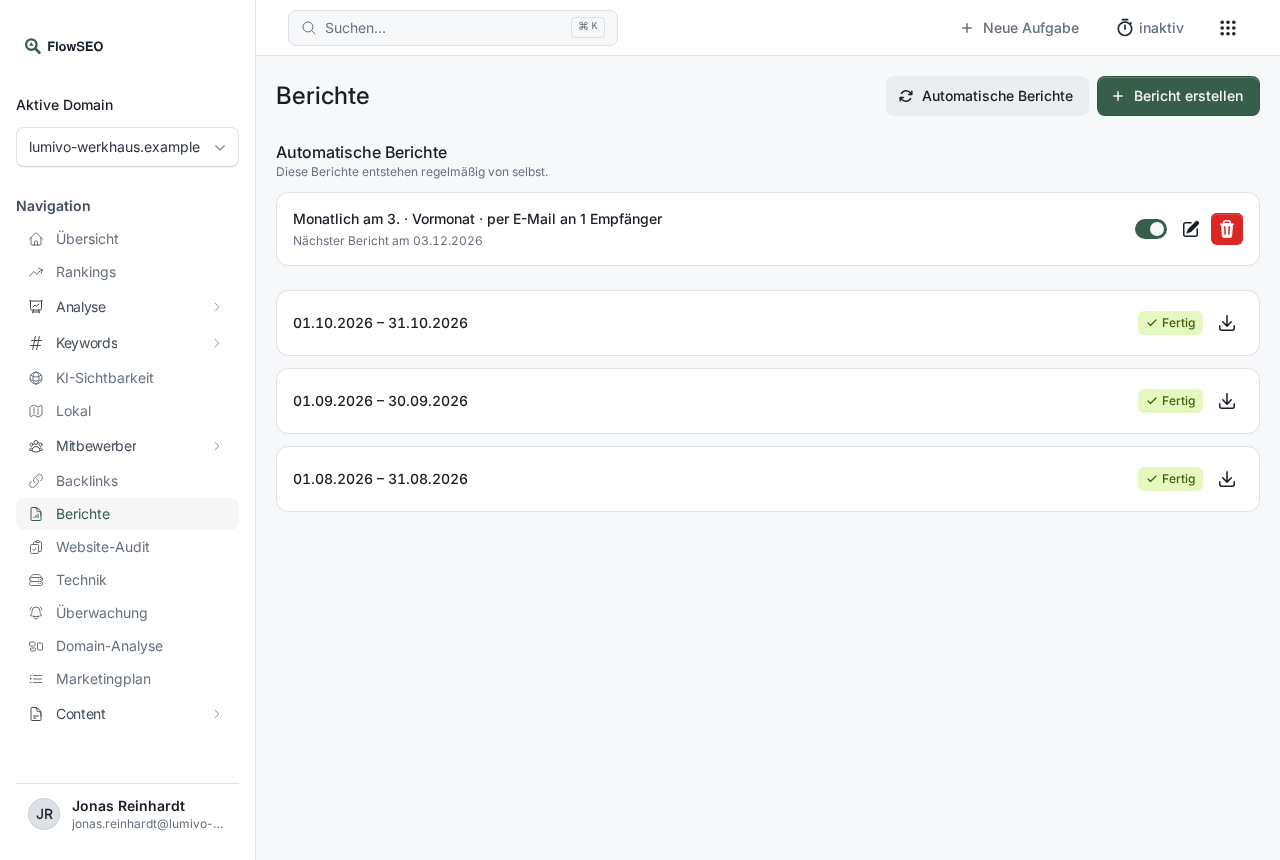
Click the download icon on the right to download the PDF. Reports don't expire, and you can get older ones again at any time.
Create your own report
- Click Create report at the top right.
- Under Period, choose a preset: Last 30 days, Last 90 days, Last month or Last quarter. Alternatively, set the start and end yourself under Custom period, up to 16 months back.
- Click Create report.
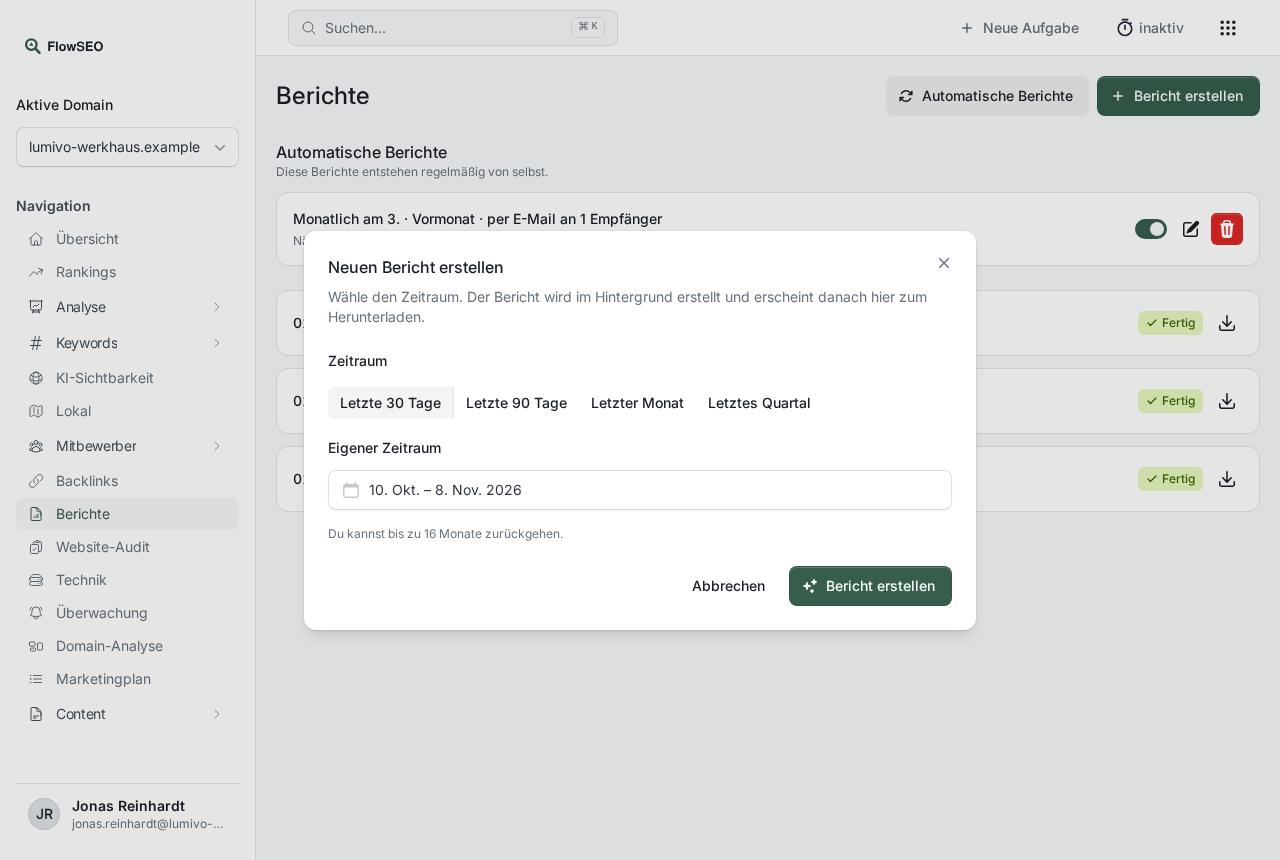
The report is created in the background. It appears in the list immediately with the status Being created. As soon as the text is written and the PDF is rendered, the status changes to Ready.
An AI writes the texts based on your measurements. The logo and main colour from your Brand DNA determine the look.
Automatic reports at the top right lets you set reports to be created regularly on their own.
If something doesn't work
- “You already created a report for this period today.” One report per period is possible each day. Download the existing report from the list or choose another period.
- Status Failed: Click Create the report again. If the text is still missing, it is written again, otherwise only the PDF is rendered again.
- “The PDF renderer is currently unavailable.” Try again in a few minutes.
- “Too many reports in a short time.” Wait a minute before you request the next report.
- Hourly limit: Every report you create yourself counts as an expensive task for your domain, and these are capped per hour. Keyword research and calls over MCP count too. More in Hourly limit.
- A report is missing from the list: Reports from our team appear only once they've been reviewed and released to you.